> ## Documentation Index
> Fetch the complete documentation index at: https://docs.knot.dev/llms.txt
> Use this file to discover all available pages before exploring further.
# Visual Editor
> Design your store visually with point-and-click editing
## Overview
The Knot Visual Editor provides an intuitive, no-code way to customize your store's design. Simply click on any element in the preview window and make changes instantly - no coding required!
## How It Works
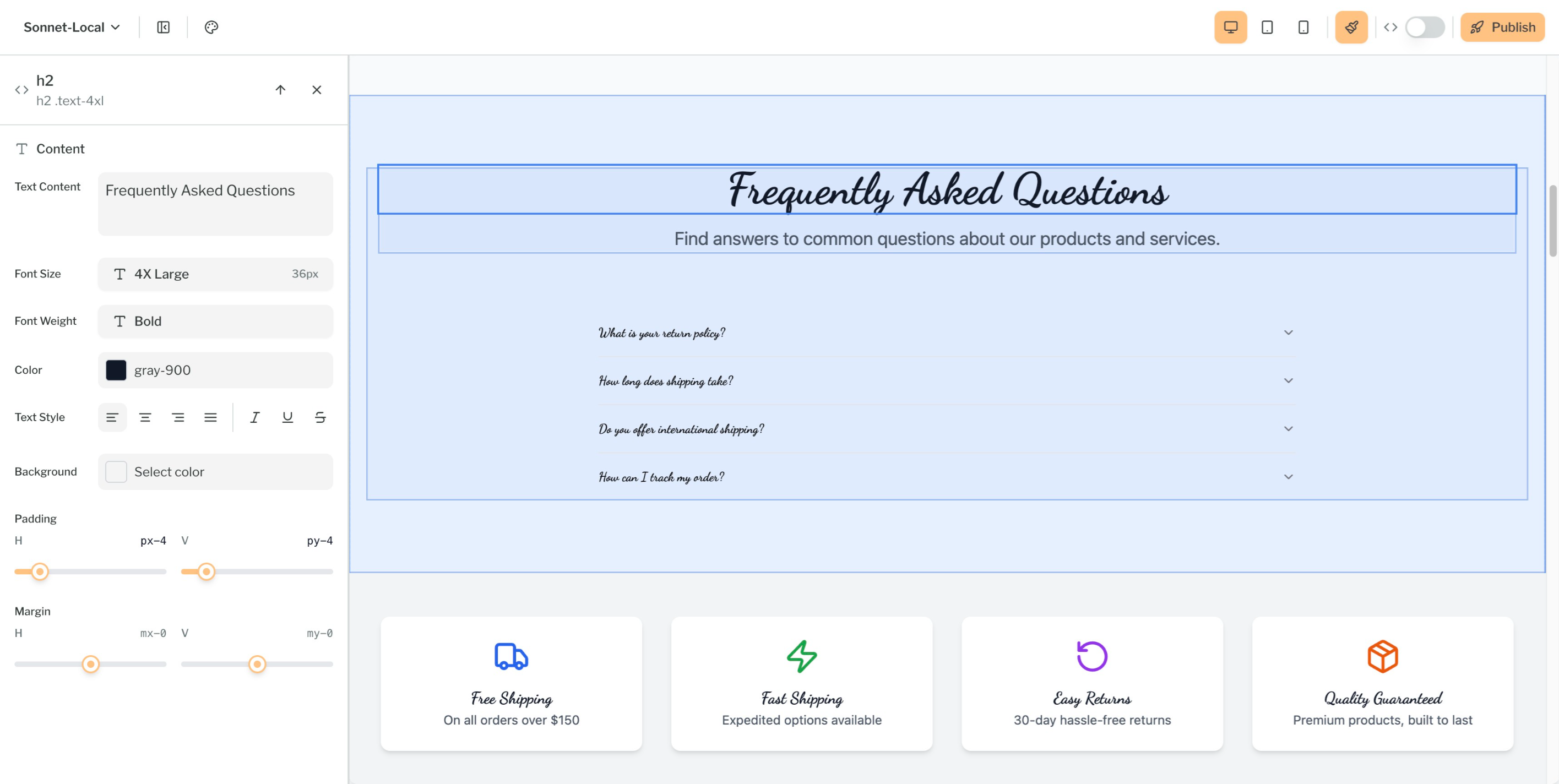
Toggle the brush icon in the top right corner of the editor to enable Visual Editor mode.
Click on any component in the preview window to select it.
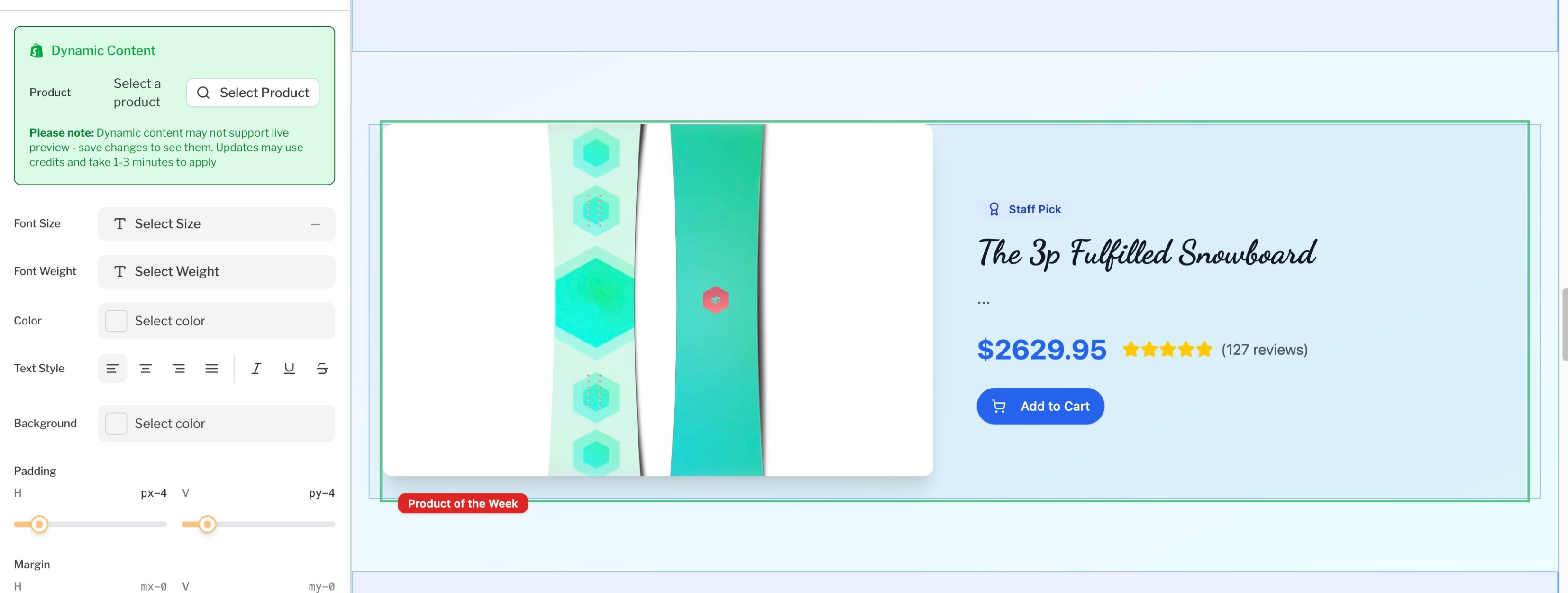
Dynamic content will be highlighted in green, and static content will be highlighted in blue.
Once selected, the editing panel will appear on the left side showing all available customization options.
Adjust any property and see your changes reflected in real-time in the preview.
To persist your changes, click the "Save changes" button at the bottom of the visual editor panel,
or discard changes by clicking "Discard".
## Styling Options
The Visual Editor gives you control over your store's appearance:
### Spacing & Layout
* **Padding**: Add internal spacing to elements
* **Margin**: Control external spacing between elements
### Typography
* **Text Content**: Edit text directly in the preview
* **Font Weight**: Make text lighter or bolder
* **Text Style**: Apply italic, underline, or strike-through
* **Text Color**: Choose from your brand colors or custom colors
* **Text Alignment**: Control how text aligns within its container
### Backgrounds
* **Background Color**: Set solid color backgrounds
### Image Replacement
Click on any image component to:
* Replace it with a new image from your media library
* Upload a new image directly
* Adjust image settings and positioning
## Dynamic Data
The Visual Editor allows you to control dynamic content in your store, such as product listings, collections, and more. Dynamic elements are highlighted in green when Visual Editor mode is active.
### Collections
Configure which product collections are visible on your store:
* Show or hide specific collections
### Products
Control individual product display:
* Choose which products to feature
### Products by Collection
Fine-tune how products appear within collections:
* Filter products by specific collections
* Control product sorting (price, name, date)
## Tips & Best Practices
**Pro Tips:**
* Use the color highlights to distinguish between static (blue) and dynamic (green) content
* Save your work frequently using the "Save changes" button
* Preview your changes in different screen sizes before saving
**Important:** Visual Editor changes are for styling and content adjustments only. For structural changes (adding new sections, rearranging layouts), use the Chat Interface in Action Mode.
 ## How It Works
 ### Collections
Configure which product collections are visible on your store:
* Show or hide specific collections
### Products
Control individual product display:
* Choose which products to feature
### Products by Collection
Fine-tune how products appear within collections:
* Filter products by specific collections
* Control product sorting (price, name, date)
## Tips & Best Practices
### Collections
Configure which product collections are visible on your store:
* Show or hide specific collections
### Products
Control individual product display:
* Choose which products to feature
### Products by Collection
Fine-tune how products appear within collections:
* Filter products by specific collections
* Control product sorting (price, name, date)
## Tips & Best Practices